IBO Player setup guide

One application, every platform. IBO Player is the only player USATVStream supports — install it once, add your playlist from the web portal, and the guide, live channels and on-demand library fill themselves in.

Why one player

Why we support IBO Player and nothing else

IBO Player runs on almost every operating system a television or streaming device might use — Android, Fire OS, webOS, Tizen, iOS, macOS, Windows and Linux — and it is one of the few players that works properly on non-Android smart TVs, which is where most IPTV setups fall apart.

It also uses remote playlist activation: your credentials go into a web portal rather than being typed on a television remote, and the app picks them up automatically. That single design decision removes the most common cause of support tickets in this industry.

Honest trade-offs: IBO Player has no recording function and no multi-screen view, and after a short complimentary evaluation window the app itself requires a one-time licence (roughly €5 for a year or €10 for lifetime) paid directly to its developer. That licence is separate from your USATVStream subscription — we do not resell it and we do not mark it up. Subscription terms and what each one costs are listed on the pricing page.

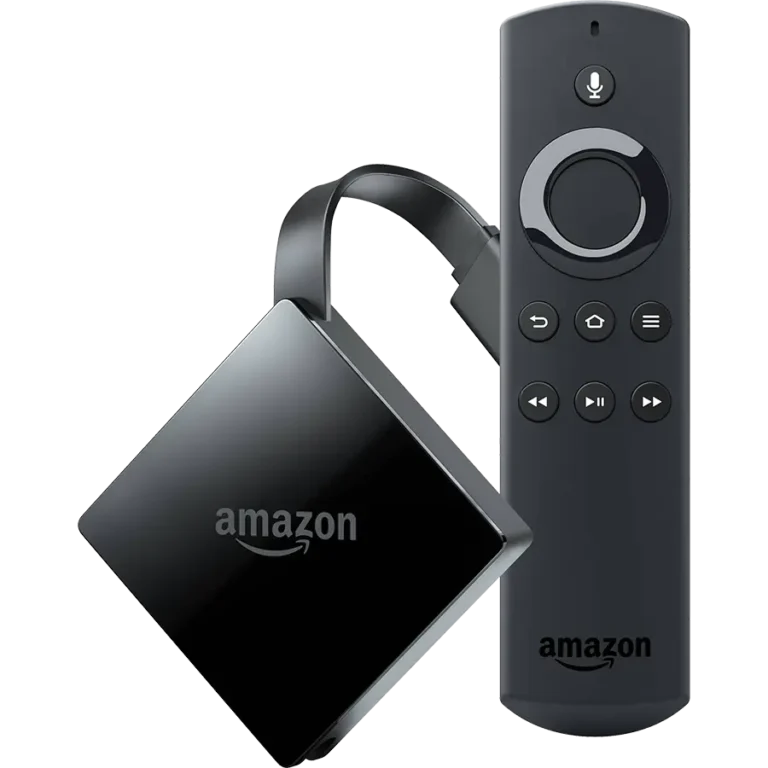
Amazon Fire TV Stick and remote used to install IBO Player
The short version

Five steps, about ten minutes

  1. Install IBO Player on the device you want to watch on, using the platform instructions below.
  2. Open the app and note the MAC address and device key shown under Device Info on the dashboard.
  3. Visit the IBO Player website, open Manage Playlist and sign in with those two values.
  4. Add your playlist — choose Add XC Playlist and paste the host, username and password we email you.
  5. Close and reopen the app. Live TV, the 7-day guide and the on-demand shelf populate on their own.
Platform by platform

Installing on your device

Find your hardware below. Every device listed here carries the same channel lineup. If yours is not listed, message the desk — the answer is usually "yes, and here is how".

Amazon Fire TV Stick and Fire TV Cube — IBO Player installation

Amazon Fire TV Stick & Fire TV Cube

Fire OS blocks installs from outside the Amazon store, so the route goes through the Downloader utility. Search the Amazon store for Downloader, install it, then open Settings → My Fire TV → Developer Options → Install Unknown Apps and switch Downloader on. If Developer Options is hidden, highlight About and press OK seven times to reveal it. Back in Downloader, enter the official IBO Player download code, allow the package to download, and confirm the install prompts.

Android phones, tablets, boxes and Google TV — IBO Player installation

Android phones, tablets, boxes & Google TV

The simplest platform of the lot. Download the IBO Player package from its official site, accept the "installing from outside the store" warning, open the file and tap Install. On Android TV and Google TV boxes without a browser, use a sideload utility from the Play Store to fetch the same file. The introductory splash screen explains itself; the playlist is added from the web portal, not the handset.

LG webOS and Samsung Tizen televisions — IBO Player installation

LG webOS & Samsung Tizen televisions

No sideloading needed. Open the LG Content Store or Samsung Apps, use the search icon, type IBO Player and pick the listing that matches exactly — several lookalikes use similar names, so read the publisher. Select Install, then Launch. A welcome message appears on first run; leave it open while you add your playlist from the portal.

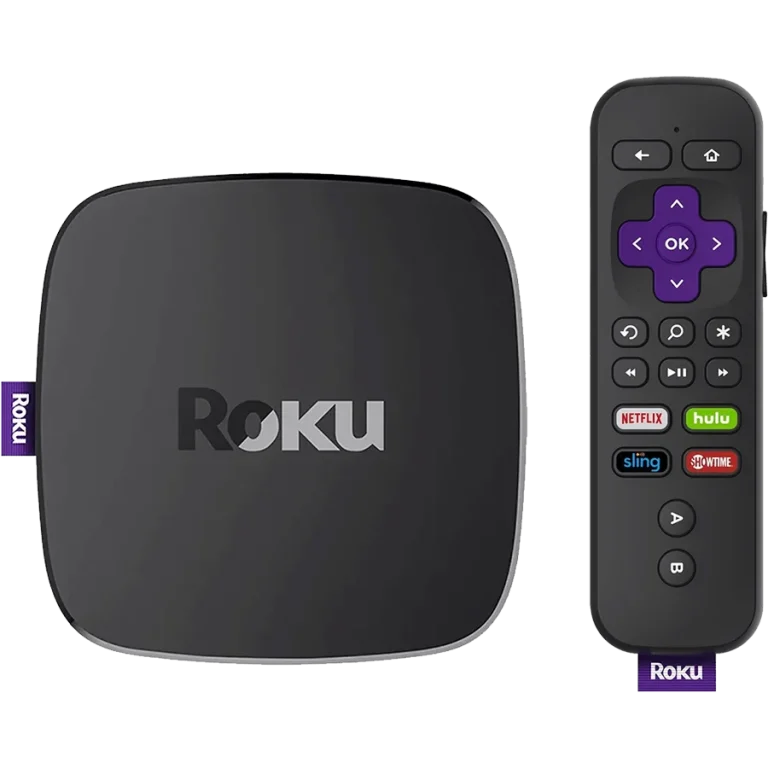
Roku streaming players and Roku TV — IBO Player installation

Roku streaming players & Roku TV

Roku is a closed platform, so IBO Player is added as a private channel rather than through the public store. Sign in to your Roku account in a browser, add the channel using the access code our desk sends with your credentials, then force a channel-list refresh on the device from Settings → System → System update → Check now.

iPhone, iPad, Apple TV and macOS — IBO Player installation

iPhone, iPad, Apple TV & macOS

Apple devices install IBO Player straight from the App Store — search the exact name and check the developer before installing. On macOS the app arrives as a disk image: open it, drag the icon into Applications, launch it once, and if Gatekeeper blocks the first run, go to System Settings → Privacy & Security, scroll to the blocked-app notice and choose Open Anyway. That choice is permanent.

Windows 10 and 11 desktops and laptops — IBO Player installation

Windows 10 & 11 desktops and laptops

Download the 64-bit Windows installer from the official IBO Player download page. Windows SmartScreen will interrupt because the file came from outside the Microsoft Store: click More info, then Run anyway. Step through the installer, tick the desktop-shortcut box if you want one, and finish. Windows 10 or newer is required.

MAG boxes and STB Emulator — IBO Player installation

MAG boxes & STB Emulator

MAG hardware and the STB Emulator app take a portal URL rather than an app install. Open Settings → System Settings → Servers → Portals, give the portal a name, paste the portal address our desk sends you, save and restart the box. The lineup loads on reboot.

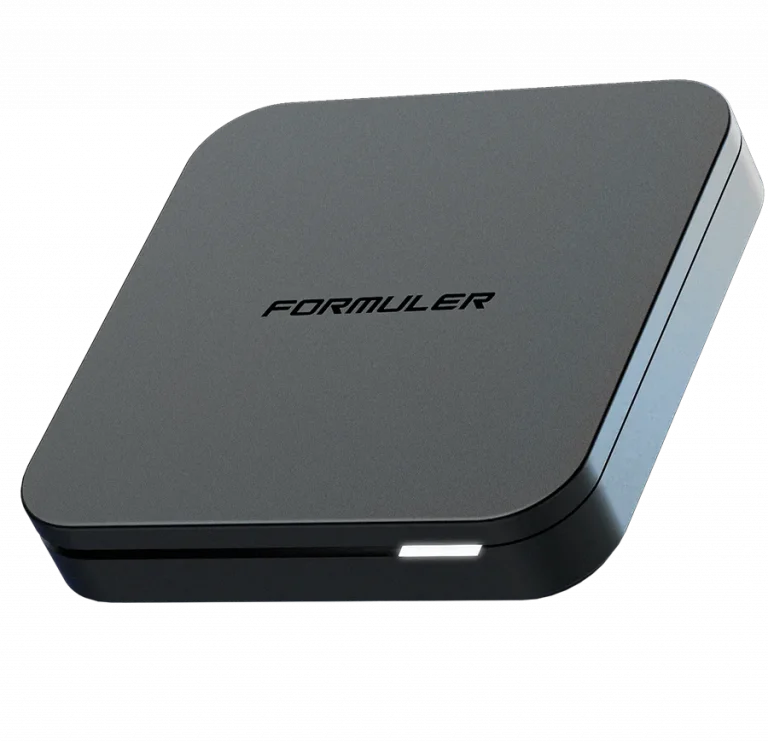
Formuler Z-series boxes — IBO Player installation

Formuler Z-series boxes

Formuler boxes run Android under the hood, so IBO Player installs like any other Android package — sideload the file from the official download page, or use the built-in app store if your firmware includes one. Add your playlist from the web portal afterwards, exactly as on any other device.

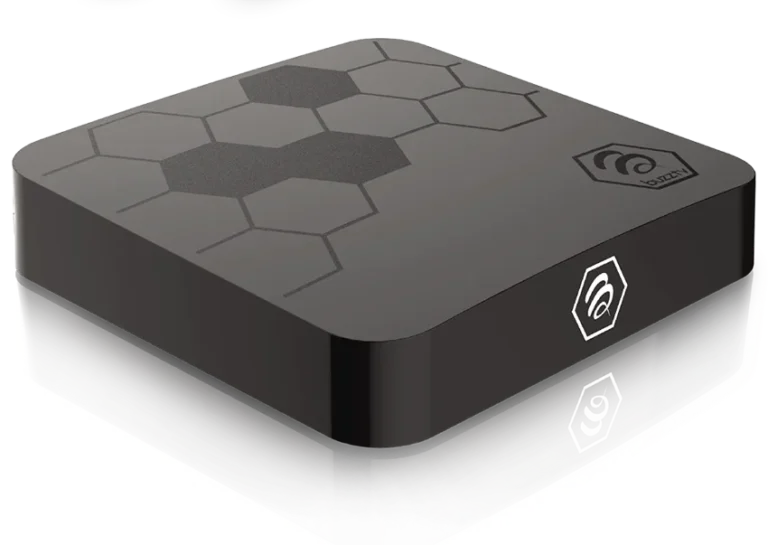
BuzzTV set-top boxes — IBO Player installation

BuzzTV set-top boxes

BuzzTV ships with an app-installer utility on the home screen. Use it to fetch the IBO Player package from the official download address, install, and launch. The device identifiers you need for the portal are on the app dashboard under Device Info.

Adding your line

Loading your USATVStream playlist

IBO Player does not ask you to type a server address on the television. Instead you log into its web portal once and the app collects the playlist over the air.

  1. Open the portal. On the IBO Player website, click Manage Playlist in the top menu.
  2. Find your identifiers. On the app dashboard, select the profile icon; the Device Info panel at the top left shows the MAC address and device key.
  3. Sign in. Enter both values into the portal form and log in.
  4. Add an XC playlist. Choose Add XC Playlist, then enter the host, username and password from your activation email. Name the playlist anything you like.
  5. Or add an M3U line. If you were sent a single long streaming URL instead, choose Add Playlist and paste it into Playlist URL. Leave the XMLTV EPG field empty — the guide is embedded in the line.
  6. Protect it if you want. Ticking Protect This Playlist lets you set a PIN, which is useful in a household with children.
  7. Save, then restart the app. The channels appear within seconds.
IBO Player application icon

Lost your credentials? Email [email protected] from the address you ordered with and the desk resends them. We never publish credentials in a chat window.

Living with the app

Three settings worth changing on day one

Fix the Live TV layout

The default live screen crams channel names under the preview window and squashes the guide. From the dashboard, open the screen icon next to the Wi-Fi symbol and switch the Live Screen Style to the alternative option. Channel names get room to breathe and the mini-preview and EPG line up properly. Press the left arrow on the remote to bring categories back.

Build a favourites list

From the channel list, press and hold OK on any channel and select Add. A heart marker confirms it. The Favourites folder sits at the top of the category column, which turns 18,400+ channels into the fifteen you actually watch. Do this once and the service stops feeling overwhelming.

Learn the search quirk

Live TV search sits in the bottom-left corner of the channel overview and looks across every category at once. It matches exact terms rather than fuzzy ones, so "espn" finds ESPN but "esp n" finds nothing. The on-demand section has its own search plus sorting by date added, rating or title. More app behaviour is covered in the FAQ.

Troubleshooting

When something is not right

A single channel stalls or freezes

Almost always an upstream feed rather than your connection. Note the exact channel name and message the desk — we reassign you to a different server, usually while you wait.

Everything buffers in the evening

Check your actual throughput, not your advertised plan. HD needs about 15 Mbps sustained and 4K about 25 Mbps. If speeds are fine but evenings are poor, your ISP may be shaping video traffic; a VPN endpoint in a nearby city usually resolves it.

The guide is blank

Refresh the playlist from the portal, then restart the app. If you added an external XMLTV source, remove it — our line carries its own guide data and the two can conflict.

The app says the device is not activated

That is the IBO Player licence, not your USATVStream subscription. Open Activate Device on the IBO Player website, sign in with the same MAC and device key, and pay the developer's one-time fee. Close and reopen the app afterwards.

Nothing works at all

Confirm the credentials were entered against the right playlist type — XC credentials in the XC form, M3U lines in the M3U form. Then contact support; median first reply is 11 minutes.
No line yet?

Order the introductory month and the credentials you need for step four land on WhatsApp within the hour.

Try 1 month — $8.99